Client Workstation Settings
 Browsers
eSign
All Windows browsers require additional settings.
Note: eSign recommends using Trusted Sites settings.
Trusted Sites
|
1 |
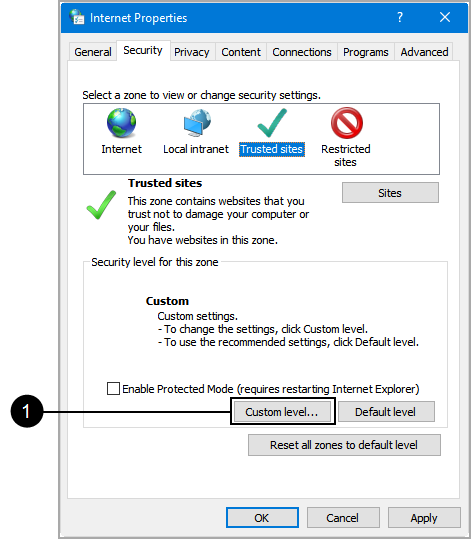
Right-click Start > Run. Enter inetcpl.cpl. Click OK. |
||||||||||||||||||||||||||||||
|
2 |
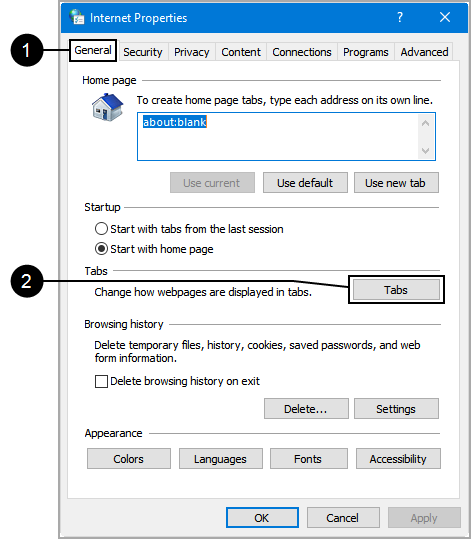
The Internet Properties window appears.
|
||||||||||||||||||||||||||||||
|
3 |
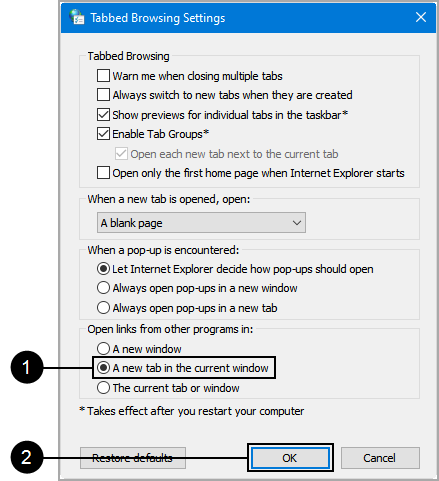
The Tabbed Browsing Settings window appears.
|
||||||||||||||||||||||||||||||
|
4 |
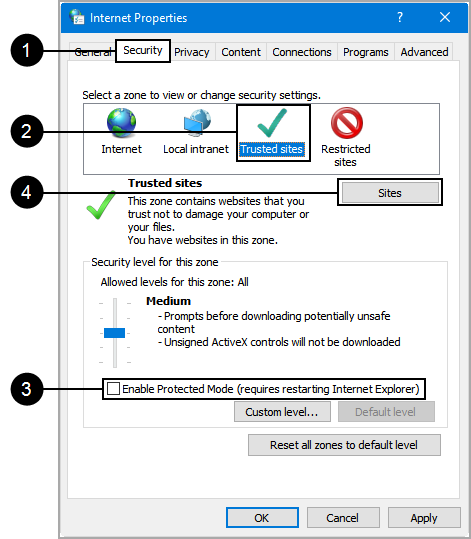
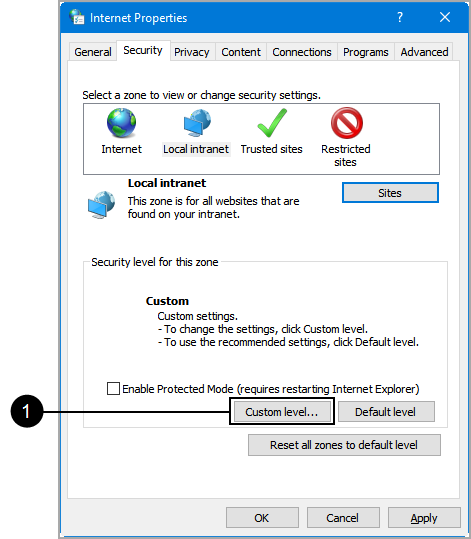
On the Internet Properties window,
|
||||||||||||||||||||||||||||||
|
5 |
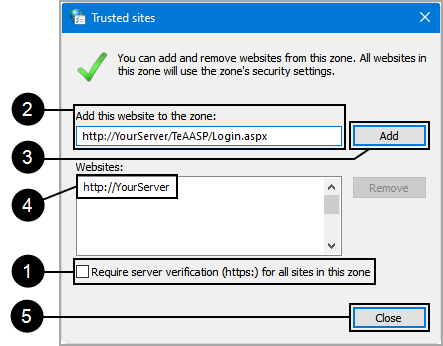
The Trusted Sites Window appears.
|
||||||||||||||||||||||||||||||
|
6 |
On the Internet Properties window,
|
||||||||||||||||||||||||||||||
|
7 |
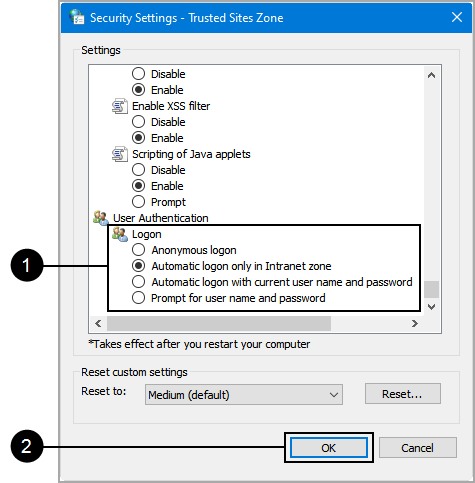
The Security Settings window appears.
|
||||||||||||||||||||||||||||||
|
8 |
Scroll to User Authentication > Logon.
|
||||||||||||||||||||||||||||||
|
9 |
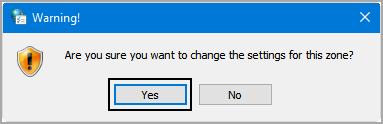
A pop-up Warning appears. Click Yes.
The Warning and Security Settings windows close. |
||||||||||||||||||||||||||||||
|
10 |
Click the Advanced tab. Verify the following configurations:
Click Apply. |
||||||||||||||||||||||||||||||
|
11 |
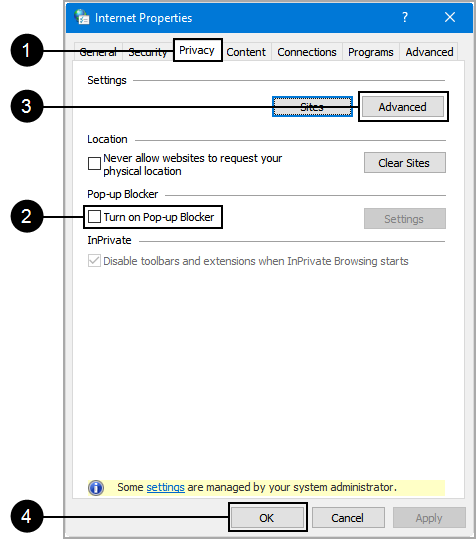
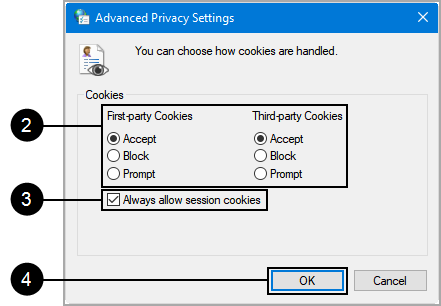
On the Internet Properties window,
|
||||||||||||||||||||||||||||||
|
12 |
On the Advanced Privacy Settings window,
|
||||||||||||||||||||||||||||||
|
13 |
Restart all browsers for the changes to take effect. | ||||||||||||||||||||||||||||||





 Local Intranet
|
1 |
Right-click Start > Run. Enter inetcpl.cpl. Click OK. |
||||||||||||||||||||||||||||||
|
2 |
The Internet Properties window appears.
|
||||||||||||||||||||||||||||||
|
3 |
The Tabbed Browsing Settings window appears.
|
||||||||||||||||||||||||||||||
|
4 |
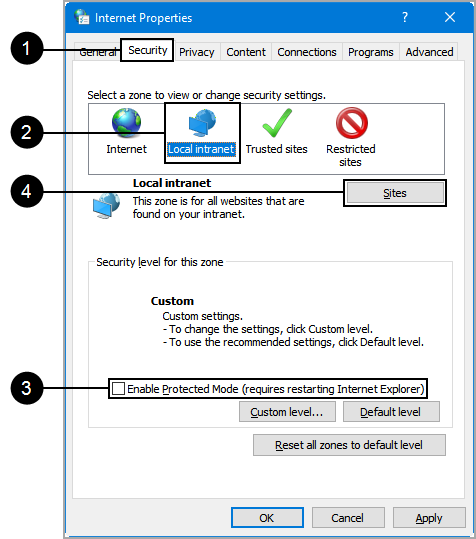
On the Internet Properties window,
|
||||||||||||||||||||||||||||||
|
5 |
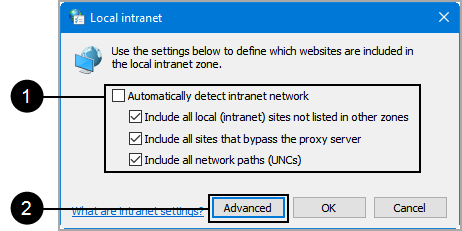
The Local intranet page appears.
|
||||||||||||||||||||||||||||||
|
6 |
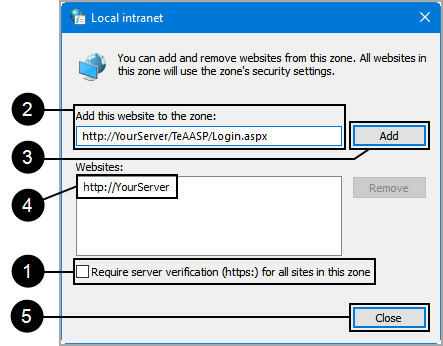
A second Local intranet page appears.
|
||||||||||||||||||||||||||||||
|
7 |
On the Internet Properties window,
|
||||||||||||||||||||||||||||||
|
8 |
The Security Settings window appears.
|
||||||||||||||||||||||||||||||
|
9 |
Scroll to User Authentication > Logon.
|
||||||||||||||||||||||||||||||
|
10 |
A Warning pop-up window appears.
Click Yes. The Warning and Security Settings windows close. |
||||||||||||||||||||||||||||||
|
11 |
Click the Advanced tab. Verify the following configurations:
Click Apply. |
||||||||||||||||||||||||||||||
|
12 |
On the Internet Properties window,
|
||||||||||||||||||||||||||||||
|
13 |
On the Advanced Privacy Settings window,
|
||||||||||||||||||||||||||||||
|
14 |
Restart all browsers for the changes to take effect. |
||||||||||||||||||||||||||||||
 Signature Pads
Refer to the Topaz Systems SigPlus website for details about installing the latest SigPlus software and drivers: https://www.topazsystems.com/sigplus_extlite.html.
Touch-Enabled Monitors
A Touch-Enabled Monitor is any device used as a primary or extended-view device that accepts finger or pen inputs or gestures. In eSign these devices can be used to display and sign documents.
These devices may require additional settings depending on the browser interface used with your installation. Not all browsers require additional settings.
Internet Explorer
Normally, no additional settings are required for using touch-enabled monitors to display or sign documents.
Chrome
In Chrome browse to chrome://flags.
Search for Touch-Events API.
Change the setting to Enabled or Automatic.
Close and restart Chrome.
Edge
In Edge browse to about:flags.
Go to Standards Preview > Enable touch events.
Change the setting to Always on or Only on when a touchscreen is detected.
Close and restart Edge.
Firefox
In Firefox browse to about:config.
Search for Type.
From the list select the setting dom.w3c_touch_events.legacy_apis.enabled.
Toggle to True.
Close and restart Firefox.