Expiring Sessions Report
The Expiring Sessions Report displays active sessions that have not expired.
To open the Expiring Sessions Report page, click Reporting > Expiring Sessions.
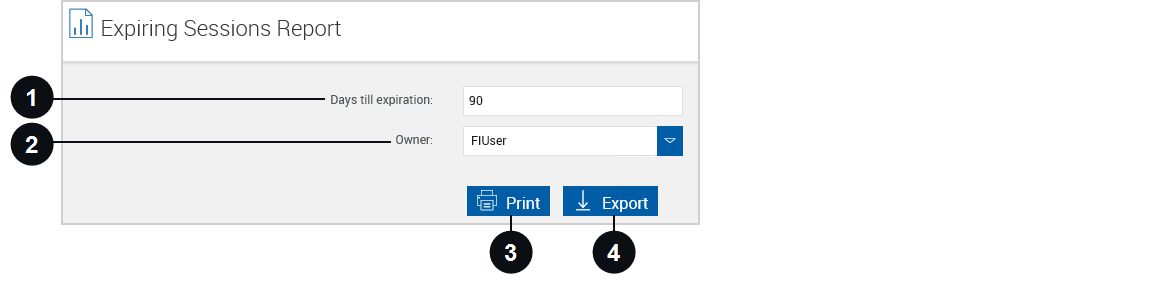
To generate an Expiring Sessions Report, enter the following parameters and then click Print or Export.

|
Days till expiration |
Include sessions with less than the entered number of days left before expiration. The default is 90 days. |

|
Owner | Leave this blank to search documents for all owners or filter the search to include documents from the selected owner only. This field may not be displayed. |

|
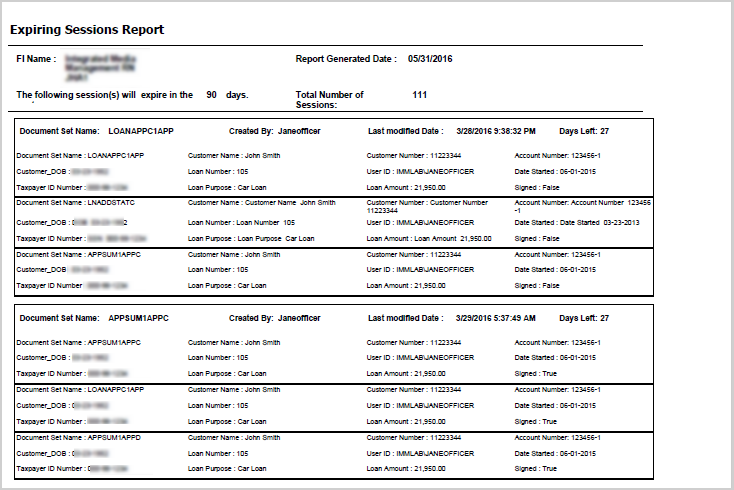
Click Print to view the Expiring Sessions Report in a PDF popup window. The report is sorted by "Days Left" in ascending order. When the Expiring Sessions Report opens in the PDF popup window, click the printer icon to print the report. A maximum of 10 index fields can be displayed in the report. | |

|
Export |
Export the Expiring Sessions Report to a .csv file. The report is sorted by "Days Left" in ascending order. After clicking the Export button, a popup appears.
After opening the .csv file, the information can be manipulated using standard worksheet methods. |
Note: If there are more than 1,000 sessions in the report range, a message is displayed stating that the report may take several minutes to generate and asking if you would like to continue or change the Days till expiration field. Click Continue to generate the report. Click Change number of days or Cancel to not generate the report.
Refer to the following example of the Expiring Sessions Report generated as a PDF.