Assigning a Template to an Unknown Document (RTS)
When there is a document that has not been assigned to a template, the document cannot be processed or archived. Using the Assign Template wizard, you can assign the document to a template, or you can delete the document from the document set.
 What happens when a template isn't assigned to a document?
When a
A session with an unknown document can only be partially processed. The document set remains as a saved session. This allows your administrator to define the document or remove the document from the document set. When a document is assigned to a template, the index values will be populated.
An unknown document cannot be archived. The unknown document will not be archived until it has been assigned to a template. Document sets containing unknown documents cannot be archived. Other documents in the set can be individually archived if they do not have unsigned signature fields.
How to assign a template or delete the document
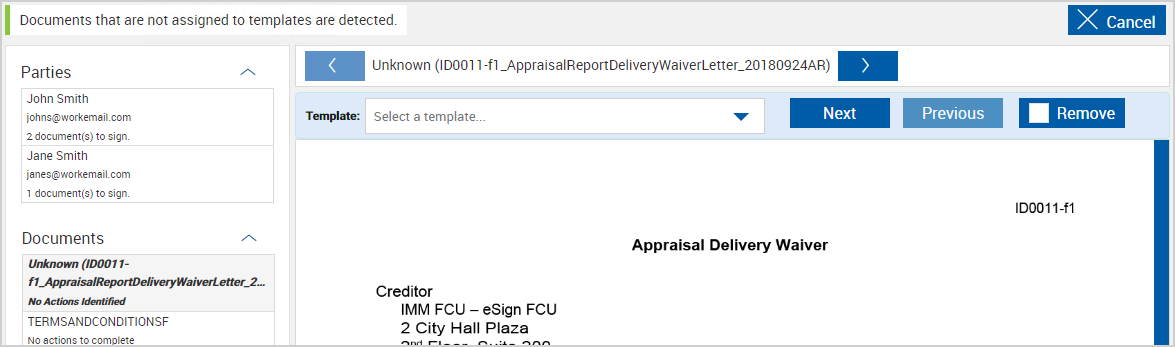
Unknown or undefined documents can be assigned to templates using the Assign Template wizard in Document Designer. From the Collected Documents page, click Create Session to be automatically rerouted to Document Designer. Alternatively, click Design on the Session Details page to open the Document Designer page. To exit the Document Designer - Assign Template page and open the Session Details page, click Cancel. The available Document Designer features and functions are set by an administrator. Some of the features and functions described here may not be applicable to you.
To assign a template, perform the following procedure:
-
On the Document Designer page, click the Template dropdown and select a template from the list, or click Remove to delete the unknown document from the document set.
Note: Depending on your administrative privileges, the Create New Template option may be available in the Template dropdown. Select Create New Template to create your own template in Template Manager.
When Remove is selected, a check mark appears and the Template dropdown is disabled as shown in the following example. To cancel the deletion, click Remove again. The check mark will disappear and the Template dropdown will become enabled again.

Note: Documents are not deleted from the set until the Apply button is clicked.
-
If there is more than one unknown document, click Next to move to the next document. Repeat Steps 1 and 2 for each unknown document. To move to a previous document, click Previous. When all documents are either assigned to a template or selected to be removed, the Next button is replaced with the Apply button.
-
When you are done assigning templates and removing unknown documents, click Apply. The templates are assigned to the documents and unknown documents are deleted from the document set. If unmapped or optional fields are detected, the Document Designer page refreshes in Map Optional & Unmapped Fields mode. If no unmapped or optional fields are detected, the Document Designer page refreshes in Preview & Add Fields mode.
