Processing Add-Ons
Generate loan payment coupon books and/or starter checks directly in eSign. If the Loan Coupons and/or Starter Checks add-ons have been activated, you will see the Processing > Create Loan Coupons and/or Processing > Create Starter Checks menu options. When one of these options is clicked, the Add-Ons Processing page is displayed. To view a list of Loan Coupons created in the current reporting period, refer to Loan Coupons Report. To view a list of Starter Checks created in the current reporting period, refer to Starter Checks Report. These pages may not be applicable to your installation.
 Processing Loan Coupons
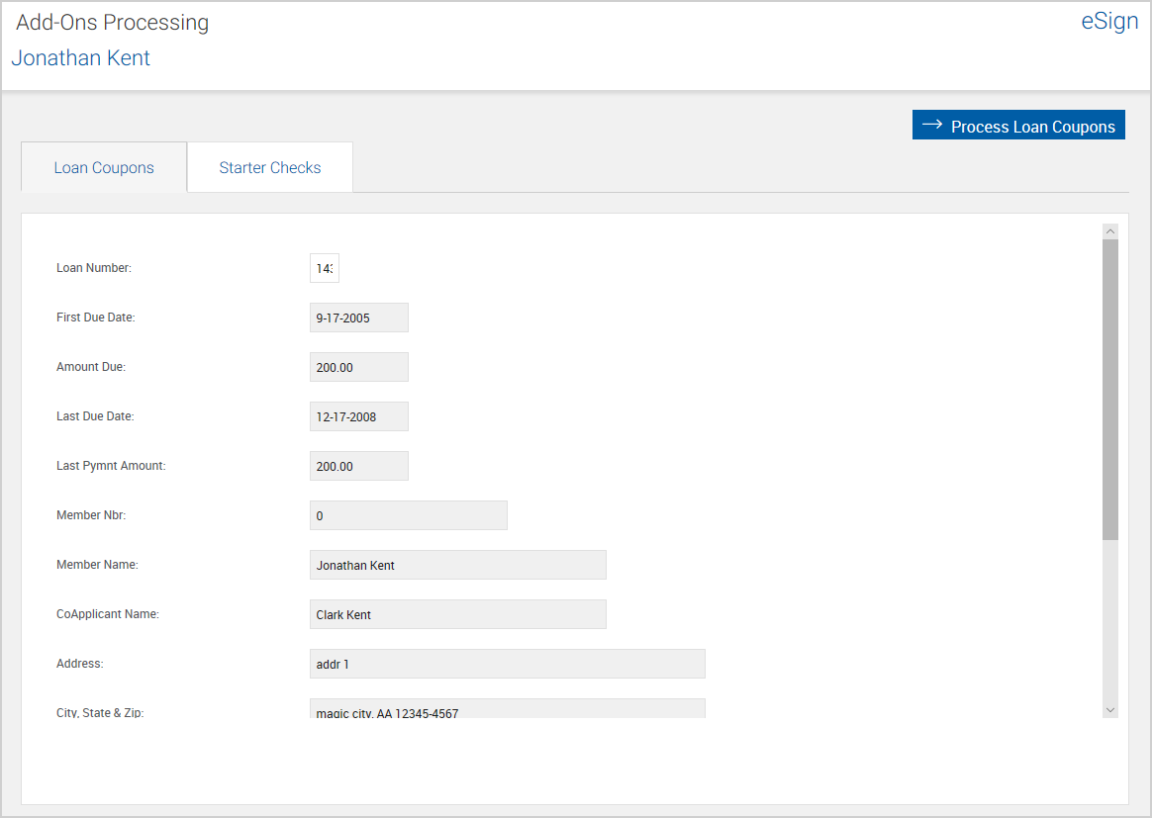
- Click Processing > Loan Coupons to display the Add-Ons Processing page. Prepopulated data cannot be edited on this page. Fields marked with red asterisks must be completed.
- Enter information in the fields as necessary. Fields marked with a red asterisk (*) must be completed. To determine the Coupon Start Number for parties who have had Loan Coupons before, refer to the Starting # column and the Coupons/Printed column from the Add-Ons Report. For example, if the most recent Starting # is 1 and Coupons/Printed is 12, the next Coupon Start Number is 13. Refer to Loan Coupons Report for details about generating a Loan Coupons Report.
- Click Process Loan Coupons. The Loan Payment Coupon Book is displayed.
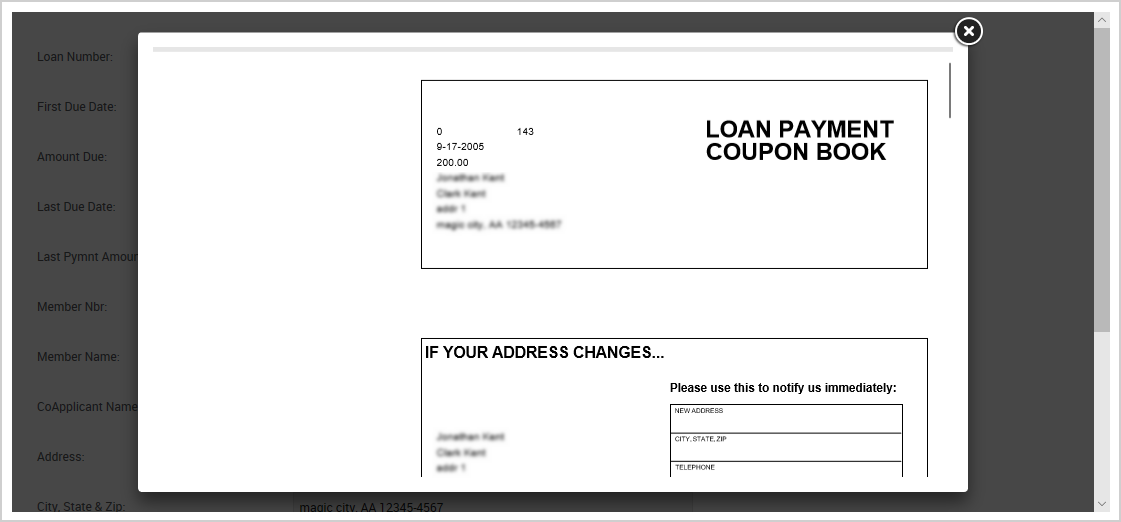
- Print the Loan Coupons from this popup. If printing to a duplex capable printer, ensure the setting is not set to duplex.
 Processing Starter Checks
- Click Processing > Starter Checks to display the Add-Ons Processing page. Prepopulated data cannot be edited on this page. Fields marked with red asterisks must be completed.
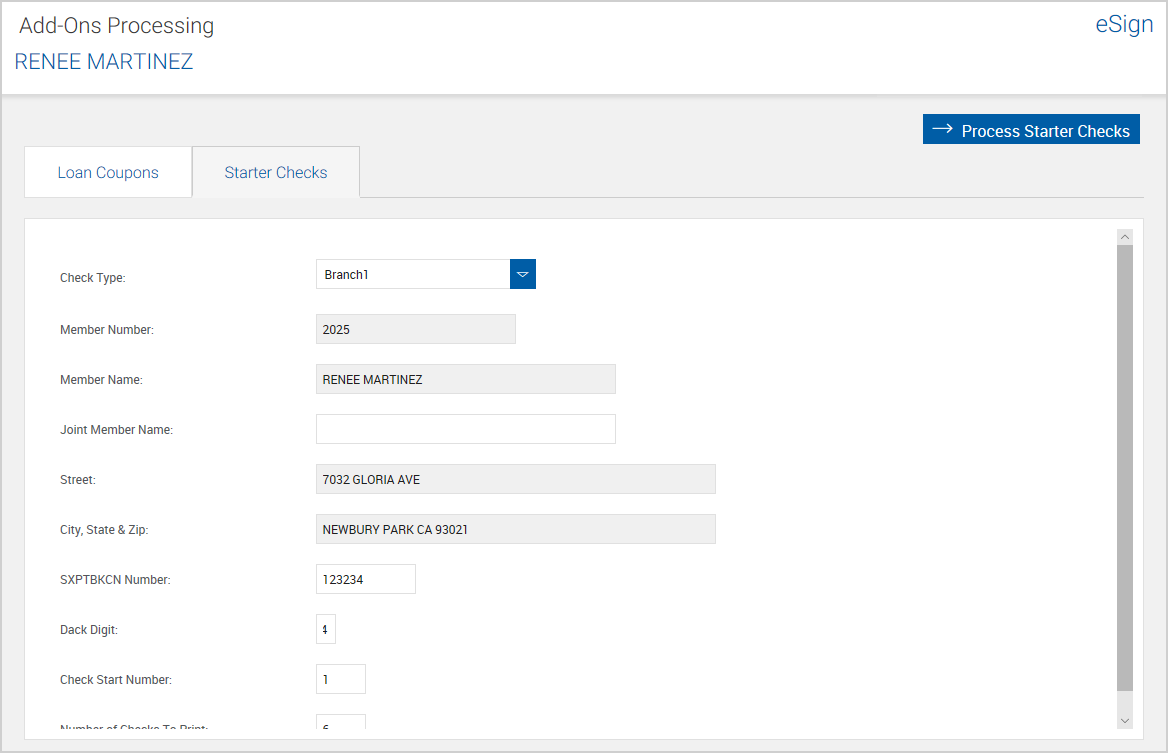
- Enter information in the fields as necessary. Fields marked with a red asterisk (*) must be completed. To determine the Check Start Number for parties who have had Starter Checks before, refer to the Starting # column and the Checks Printed column from the Add-Ons Report. For example, if the most recent Starting # is 1 and Checks Printed is 12, the next Check Start Number is 13. Refer to Starter Checks Report for details about generating a Starter Checks Report.
- Click Process Starter Checks. The Starter Checks are displayed.
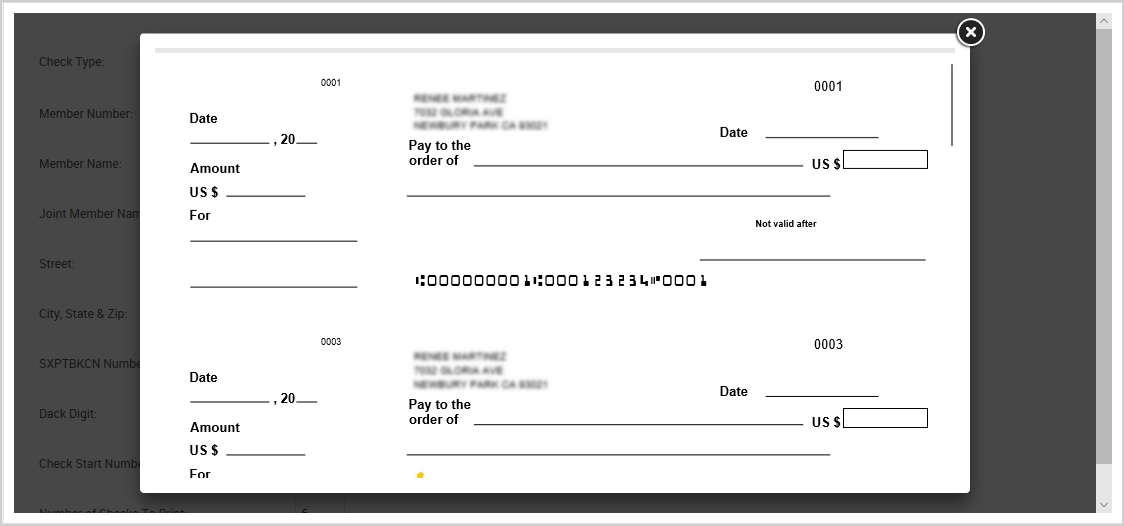
- Print the Starter Checks from this popup. If printing to a duplex capable printer, ensure the setting is not set to duplex.