Failed Downloads Report
To open the Failed Downloads Report page, click Reporting > Remote Signatures > Failed Downloads. This report lists any batches that failed to download from the document delivery system or downloaded incorrectly. It is recommended to run this report on a regular basis. Contact support if your report shows failures. This menu is only available if the Remote Signatures Add-On is activated.
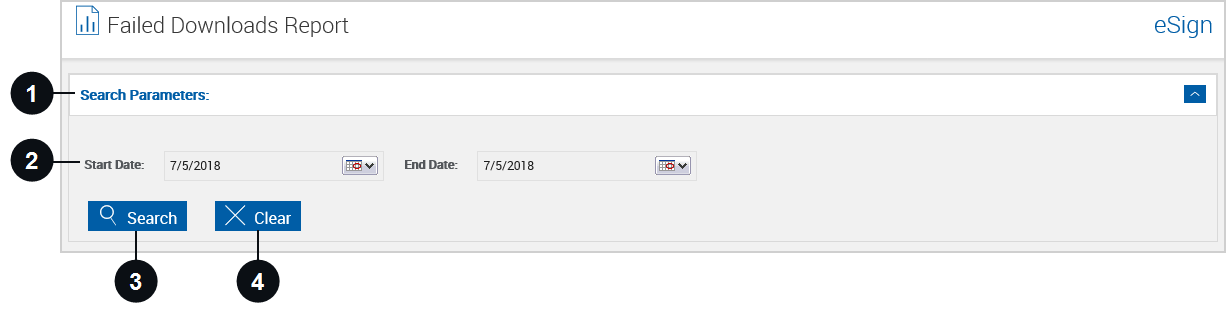
To generate a Failed Downloads Report, enter the following information.

|
Panel Title Bar |
Click the title bar to collapse and expand the parameter section. |

|
Start Date and End Date | Enter a beginning date and an ending date. Refer to Using Calendars for details. |

|
Search | Search failed downloads based on the selected parameters. |

|
Clear | Close existing report and clear search parameters. |
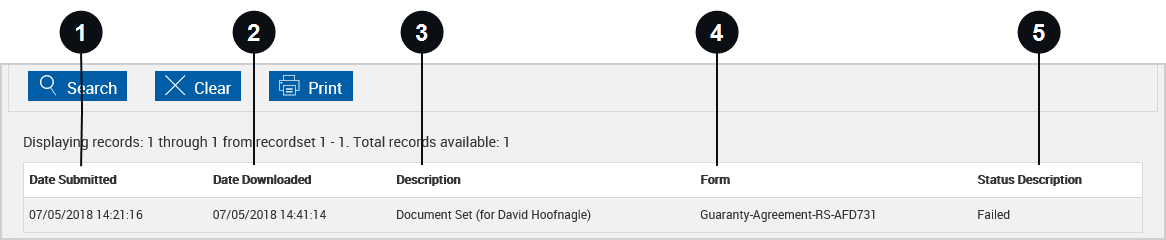
When Search is clicked, the Failed Downloads Report page refreshes with the report listed below the search parameters. When the page is refreshed, the Print button is added. Click Print to display and print the report from a PDF popup.
|
|
Date Submitted |
The date this document set was submitted for signatures. |
|
|
Date Downloaded | The date this document set was downloaded from the document delivery system. The document set, at that point, will be completed with all required signatures included. |
|
|
Description | Document set name listed with primary applicant name showing. (Secondary and Co-Applicant names will not display.) |
|
|
Form | Document names included in this document set. |

|
Status Description |
This column displays results of Remote Signatures querying the document delivery system.
|